


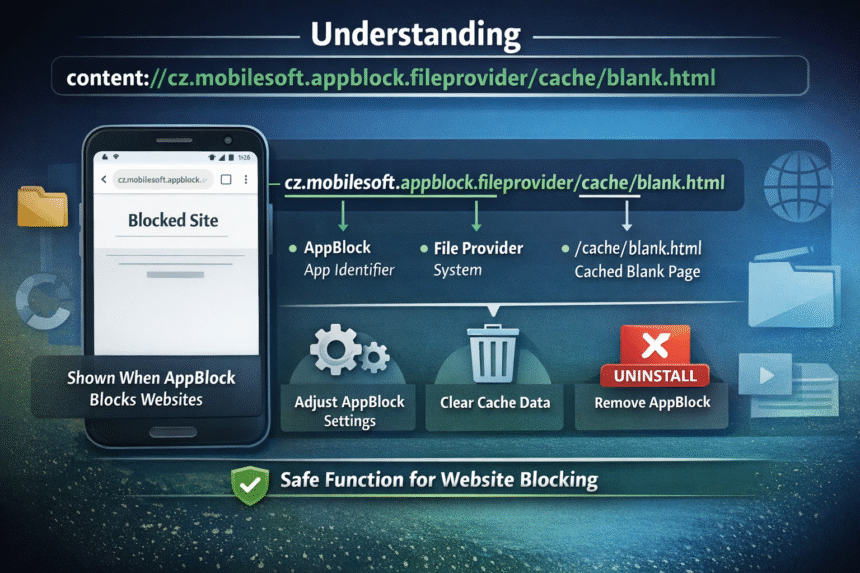
Understanding content://cz.mobilesoft.appblock.fileprovider/cache/blank.html on Android Devices
Android users often come across unusual file paths while using productivity applications. One such path is: content://cz.mobilesoft.appblock.fileprovider/cache/blank.html
At first glance, it might look confusing or alarming. However, this URI is a normal part of how the AppBlock application manages website blocking, cached data, and Android content permissions. Understanding what it is, why it appears, and how to manage it can help you troubleshoot and optimize your device usage.
What Is content://cz.mobilesoft.appblock.fileprovider/cache/blank.html?
This URI is generated by AppBlock, a productivity and digital health application developed by MobileSoft. When you try to access a blocked website, AppBlock intercepts the navigation request and redirects your browser to a locally cached blank HTML file, rather than allowing the site to load.
This approach improves speed, prevents errors, and ensures users immediately see feedback instead of waiting for the blocked content to time out.
Breaking Down the URI
| Component | Description |
|---|---|
content:// |
Android Content Provider protocol identifier |
cz.mobilesoft.appblock.fileprovider |
Identifies AppBlock’s FileProvider authority |
/cache/blank.html |
Points to the temporary placeholder document in the app’s cache |
The URI follows Android’s content-sharing protocol, which allows apps to safely access and manage internal files without exposing the full file system.
Why Does This URI Appear?
You will see content://cz.mobilesoft.appblock.fileprovider/cache/blank.html under these conditions:
- Active Website Blocking: When visiting a domain on your AppBlock blocklist, the app replaces the page with a blank.html placeholder.
- Browsing History: Blocked pages still register as visited, so the URI can appear in your history.
- Device Logs: Developers or advanced users reviewing system logs may notice this URI during debugging or performance tracking.
This is normal behavior and not a virus, malware, or security threat.
How to Resolve or Manage the URI
While it’s not an error, you can control whether and how you see this URI:
1. Adjust AppBlock Filtering Settings
- Open AppBlock and tap Settings.
- Locate Web Filtering or Website Blocking.
- Review blocked websites and remove any you no longer want restricted.
- Toggle specific rules off to allow certain sites.
- Tap Save to apply changes.
2. Temporarily Pause AppBlock
- Access Quick Settings or notifications.
- Long-press the AppBlock notification (if available).
- Tap Pause or Disable Blocking temporarily.
3. Clear AppBlock Cache Data
- Go to Settings > Apps > AppBlock.
- Tap Storage & Cache.
- Select Clear Cache to remove temporary files, including blank.html.
4. Uninstall AppBlock Completely
- Navigate to Settings > Apps > AppBlock.
- Tap Uninstall to permanently remove the app.
- Consider alternative productivity tools for website blocking if needed.
5. Use Native Browser Controls
- Open Chrome or your preferred browser.
- Go to Settings > Site Settings > Privacy & Security.
- Configure permissions to manage website access without third-party apps.
Technical Insights: AppBlock and FileProvider
AppBlock uses Android’s FileProvider system to manage cached content safely. This design ensures secure, temporary storage of internal files and controls which apps can access them.
Anatomy of content://cz.mobilesoft.appblock.fileprovider/cache/blank.html
| Part | Function |
|---|---|
Scheme (content://) |
Identifies the URI as a Content Provider resource |
Authority (cz.mobilesoft.appblock.fileprovider) |
Unique identifier for AppBlock’s FileProvider |
Path (cache) |
Points to AppBlock’s cache directory |
Resource (blank.html) |
Placeholder HTML file shown when websites are blocked |
FileProvider Configuration Example
<provider
   android:name="androidx.core.content.FileProvider"
   android:authorities="cz.mobilesoft.appblock.fileprovider"
   android:exported="false"
   android:grantUriPermissions="true">
   <meta-data
       android:name="android.support.FILE_PROVIDER_PATHS"
       android:resource="@xml/file_paths" />
</provider>
Developers can access the cached content programmatically using ContentResolver:
Uri contentUri = Uri.parse("content://cz.mobilesoft.appblock.fileprovider/cache/blank.html");
try (InputStream inputStream = getContentResolver().openInputStream(contentUri)) {
    BufferedReader reader = new BufferedReader(new InputStreamReader(inputStream));
    StringBuilder htmlContent = new StringBuilder();
    String line;
    while ((line = reader.readLine()) != null) {
        htmlContent.append(line);
    }
    // Process cached HTML as needed
} catch (IOException e) {
    Log.e("AppBlock", "Error accessing cached content", e);
}
Why Understanding This URI Matters
- Security: Prevents unauthorized access to internal app directories.
- User Experience: Shows a blank placeholder instead of an error page.
- Performance: Loads cached content faster than external network requests.
- Cross-Device Consistency: Works the same on Android phones, tablets, and Chromebooks.
FAQs
1. Is content://cz.mobilesoft.appblock.fileprovider/cache/blank.html safe?
Yes, it’s a legitimate AppBlock file. It is not malware or a virus.
2. Can other apps access this file without permission?
No, only apps granted permission via FileProvider can access it.
3. Why does it appear in browser history or system logs?
Blocked websites are substituted with blank.html, which registers as visited in logs or history.
4. Can I delete blank.html manually?
No, Android manages app cache automatically. Files are recreated by AppBlock as needed.
5. Does this indicate AppBlock is monitoring my browsing?
No, it only enforces your configured blocklist restrictions. General browsing is not tracked.
6. How can I permanently stop this URI from appearing?
Uninstall AppBlock or disable all website-blocking rules in the app.
7. How do developers implement FileProvider features?
Extend Android’s FileProvider class, set authority in the manifest, and define secure file paths in XML.
Conclusion
content://cz.mobilesoft.appblock.fileprovider/cache/blank.html is a normal, safe, and functional part of AppBlock’s workflow on Android. Understanding how and why it appears helps users manage productivity tools, cache settings, and permissions more effectively. Whether you’re a casual user or a developer, this URI represents modern Android practices for secure content sharing, performance optimization, and user-friendly app behavior.